ISO Deployment Queue Procedure (Enhanced with Email Templates)
Overview
This queue is used when terminals/devices (Clover, Valor, FD, etc.) need to be deployed for an ISO (Independent Sales Organization) that manages its own merchant base.
Note: All email templates mentioned in this procedure are housed under Canned Responses in Freshdesk, in the following folders:
- Single Merchant – Deployed by ISO – 3-Step Email Sequence
- Multiple Merchants – Deployed by ISO – 3-Step Email Sequence
Please use only these templates when sending follow-ups.
1. Log in to CRM
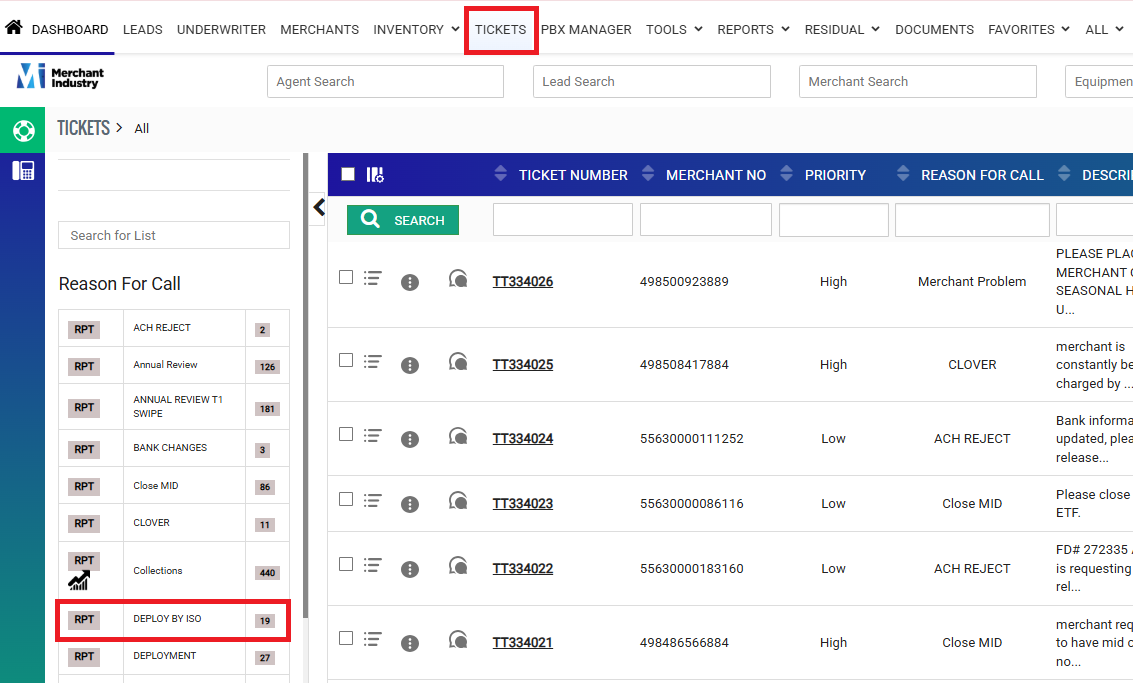
- Open CRM and select Tickets.
- Navigate to the Deploy by ISO queue.
- Open the applicable ticket.
2. Review the Ticket / Request
- Review the ticket notes and request details to determine the next steps.
- If the ticket clearly indicates the deployment method: proceed to Step 3.
- If the ticket does not specify deployment method: proceed to Step 5 (ISO follow-up).
3. Route the Ticket to the Correct Queue
- Move to Repro: Select Repro if the device requires reprogramming.
- Move to Deployment:Move the ticket to the Deployment queue if:
- Notes indicate Ship to Merchant or Ship to ISO, or
- The request includes a Device Type and Shipping Preference.
- Move to Clover: Move the ticket to the Clover queue if the request involves a Clover-related device.
4. Review Processing (No Deployment Needed)
- If no deployment action is required and the merchant is already processing:
- Verify the merchant has processed a transaction above $30.
- Add the following internal comment:
Merchant transaction verified; ticket reviewed for processing. - Close the ticket.
5. Email the ISO — Follow-Up Timeline
If the ticket does not include deployment details or is unclear, use the following 3-step email sequence from the Canned Responses folder:
Day 3: 1st Attempt
- Template: Initial Email – Single/Multi Merchant
- Subject (Single Merchant): Equipment Confirmation – [MID] | [DBA Name]
- Subject (Multiple Merchants): Equipment Confirmation – [ISO Office Name]
- Body: Use the corresponding canned response from Freshdesk.
- Note: 1st Attempt – Follow-up sent requesting device type/VAR sheet.
Day 5: 2nd Attempt
- Template: Second Attempt Follow-Up – Single/Multi Merchant
- Subject (Single Merchant): Follow-Up: Equipment Confirmation – [MID] | [DBA Name]
- Subject (Multiple Merchants): Follow-Up: Equipment Confirmation – [ISO Office Name]
- Body: Use the corresponding canned response from Freshdesk.
- Note: 2nd Attempt – Follow-up sent.
Day 7: 3rd Attempt
- Template: Final Attempt Follow-Up – Single/Multi Merchant
- Subject (Single Merchant): Final Follow-Up: Equipment Confirmation – [MID] | [DBA Name]
- Subject (Multiple Merchants): Final Follow-Up: Equipment Confirmation – [ISO Office Name]
- Body: Use the corresponding canned response from Freshdesk.
- Note: 3rd Attempt – Final follow-up sent.
Day 9: Close Ticket
- If there is still no response, close the ticket.
- Note: No response after 3 attempts; ticket closed.
- If the merchant started processing, close the ticket.
- Note: Merchant transaction verified; ticket reviewed for processing.
Additional Notes
- Always double-check the ISO/Office listed.
- If the ISO requires deployment, route the ticket promptly to the correct RFC and add notes.
- Tickets auto-close when they reach 100% complete or if the account is closed. If this does not occur, notify the appropriate contact.
- Special Account Handling:
- Online sales accounts:
Inside Sales agents are expected to document all outreach attempts in the ticket within 24-48 hours of ticket creation.If no outreach documentation is present, send an email to Ramiro Salazar and copy Tamika Fletcher for follow up within 3-5 business days.Include the MID and DBA Name in the email.Add the following internal comment: Escalated for management review.
- External instance tickets (Mecca, Promotex, RMF, NEP): You may close the ticket without updates.
- Elavon accounts:
- Check their portal. Only accounts with completed transactions should be closed.
- If no processing is found:
- Advise how to proceed by contacting the sales rep listed in the “Override” section of the merchant profile before closing.
- Document guidance in the ticket.
- Tickets from the following ISOs may be closed immediately, as they handle deployment themselves:
- Direct Sales Agents/Office
- EMG Agents
- Jeremy Coello Agents
- Merchant Industry Capri Agents
- Plushpay Agents
- Xpay Agents
- Online sales accounts:
Was this article helpful?
That’s Great!
Thank you for your feedback
Sorry! We couldn't be helpful
Thank you for your feedback
Feedback sent
We appreciate your effort and will try to fix the article