Technical Support
Objective:
To meet the requirements and also to resolve discrepancies encountered by merchants and ISOs, ensuring a seamless and hassle-free transaction experience, thereby enhancing user satisfaction.
Scope:
Technical Support RFC focuses on assisting customers in implementing the required updates and identifying and addressing issues affecting transaction processes for merchants and ISOs. Its scope includes analyzing discrepancies, implementing solutions to streamline operations, and enhancing overall satisfaction by improving transaction reliability and efficiency.
Process Flow:
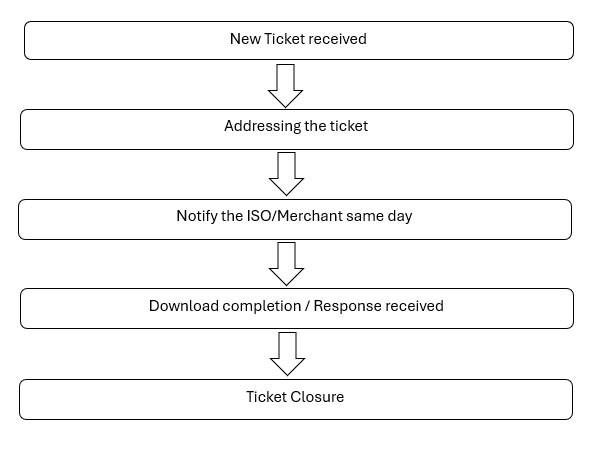
Roles and Responsibilities:
Solutions:
Email Address change
We must ensure that the email address has already been updated in the backend before proceeding to update it at the terminal level.
For Valor
For Dejavoo
For PAX
For Auth.net
For NMI
Phone Number change
We must ensure that the contact number has already been updated in the backend before proceeding to update it at the terminal level.
For Valor
For Dejavoo
For PAX
For Auth.net
For NMI
Pricing Conversion
We must ensure that the pricing update has been completed at the Backend before proceeding to update it on the Terminal level.
For Valor
For Dejavoo
For PAX
Auto Batch enable / disable
We must ensure that the tip has not been enabled to the merchant requesting the Auto Batch feature.
As per our protocol, we will not give both the Auto Batch feature and the Tip option to the same merchant using Valor devices.
For Valor
For Dejavoo
For PAX
VAR file request
Go to the Equipment’s section.
If it’s a new account and already a stage only file was present, download the VAR file and send it to the email address mentioned on the ticket.
Else create a new stage only VAR file and download it and send it to the email address mentioned on the ticket.
TAX enable / disable
We must go through the ticket twice before enabling or disabling the TAX.
Locate the devices that the merchant is using and update it as per the requirements.
For Valor
For Dejavoo
For PAX
EBT feature enable / disable
We must go through the ticket, documents section and maintenance page before enabling or disabling the EBT feature.
We must ensure that the EBT / FNS number update has been completed at the Backend before proceeding to update it on the Terminal level.
For Valor
For Dejavoo
For PAX
Host Capture
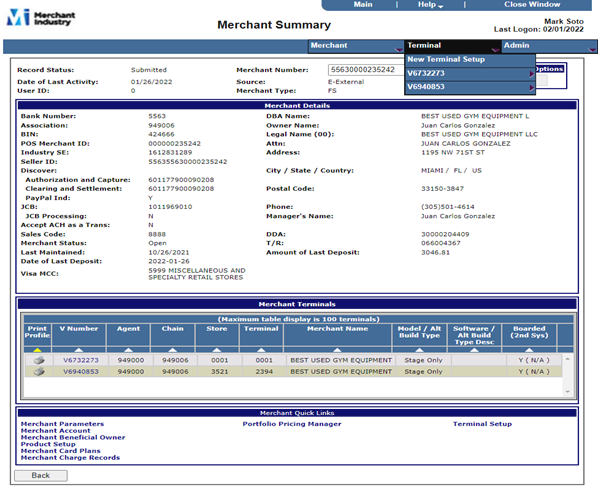
The ISO will request the ticket has “PLEASE PROVIDE ME WITH SUMMIT VAR SHEET WITH AUTH CODE” -> Go to the CBOS and enter the MID. -> Select the New Terminal Setup under “Terminal” in the right top corner. -> Put in store and terminal numbers. Create any random 4 digit values. -> Click the “Get V Number” button. -> Click the “Get V Number” button.-> Use checkbox Host Capture Participant, then click IT under “Attachment Code” dropdown. -> Click “Service Level: RAO” Manufacturer dropdown: Stage, Model dropdown: HC Stage, Software dropdown: HCSTGT. -> Click the checkboxes AMEX, Discover, and JCB. -> Use checkbox Host Capture Participant, then click IT under “Attachment Code” dropdown. -> Click “Service Level: RAO” Manufacturer dropdown: Stage, Model dropdown: HC Stage, Software dropdown: HCSTGT. -> Click the checkboxes AMEX, Discover, and JCB. Under tech support comments enter “Use dial up as backup” and Auth Code: 123456789A (We make this up but use this as default for organisation purposes.) -> Hit “Next Page” and go down to “Auth Code” and enter “123456789A” and hit confirm. -> Set “Auto Close Time” 1:2200 and then click the next page. -> Click Mastercard and hit “Update” -> “Partial Auth” and then select No Partial Auth, click on “Board.” -> Click “Print Friendly Data” and save it using this template. (MID - HC ID - Auth # Now send email using (MID - HC ID - Auth #) as the subject and inform the email recipient of the contents of the email. Thus the ticket for the Host Capture needs to be completed.
Return Label
Regular & Return label process creation at the same time :

Go to shipment → Select shiping specification as “  New XXX” and next updated Return label as” No “ then save —> Choose the service with Fedex Ground / as per Request service → Create shipping → Once prompt got the shipment created → then it will shows the Return label and We can create the Call tag and will send the return label via email.

After that we have to create the Invoice  below fees as
    -> Product fee
    -> Shipping cost
    -> Return shipping cost
    -> Deployment fee

Return label or Call tag process

Go to shipment shipment process(Return shipment) —>Have to ensure the Receipt address as ( MI address) shipper address as “ Merchant address” then chose specification as “ Returned equipment model” → Service type should be choose ( Ground) → Create the shipment once done → click the show label→ the use the print label and share to that ISO, merchant via Email.

* Notes: Invoice should be created with Return shipment cost. *
Merchant Portal Access
If the merchant/ ISO requesting the Online portal/Merchant portal, follow the below steps into that CRM
Crm→ Click that Man icon→ then enable the portal access and click send activation link—> Merchant will receive the welcome email. If you have already forgotten the password, then we can send the reset password link
Apply pay & Phonepay setup on Pax terminal
If a merchant requests the phone pay or Apply, they have to work with their terminal. We have to enable the contactless option.
Pax : Pax portal →Terminal profile→ View template details → MISC→ Peripherals feature —> Contactless module (Internal). Once a merchant took download that Tab option will be work.

Dejavoo Devices
Download Process on the Terminal
After batch out
(Default Password is 1234)
- Press Core Menu
- Utility
- Software Download
- Connect
- Choose Type of Connection (Ethernet or Wi-Fi)
- Input TPN
- Apply updates - Yes
- Once the terminal reads 100% download, press cancels twice in order to reboot the terminal.
If they are connected with a pinpad, they need to take a download too.
Pin pad Encryption Reboot
- On main terminal
- Press Green button
- Go to application
- Credit / Debit / EBT
- Set up
- Pinpad
- It will push an update to pinpad and reboot
Surcharge Pricing
Note: Ensure the merchants backend pricing was updated to Surcharge before proceeding on the terminal level.
Go to the Dejavoo portal.
Enter the TPN on the search box
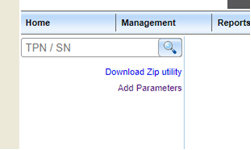
A merchant info will appear, verify if it was the desired merchant.
In the custom section we need to enable Parameters to allow us to add the surcharge functionality so it can read the BIN off the card
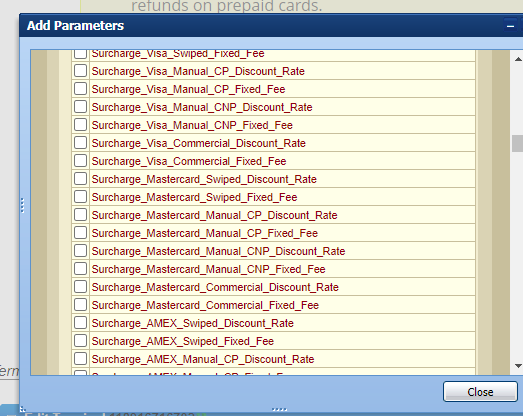
Select these fields and edit them to 02900.
The Surcharge merchants needs to be updated as per the below snippet.
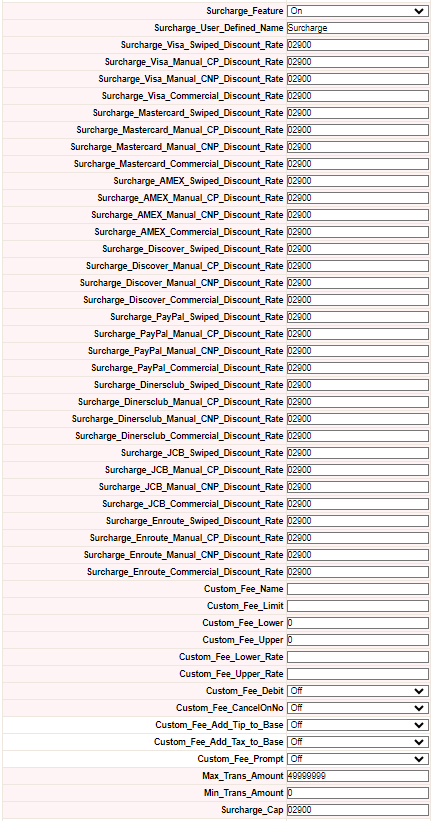
Printing on Receipt, enable this parameter 
Make sure to set it on.
It will now show the surcharge amount on the Receipt.
Dual pricing
In Dejavoo terminal dual pricing is called “ Tender pricing”.
Step 1: Enter the TPN on the Dejavoo portal.
Step 2: Ensure DBA name and MID.
Step 3: When we update the tender pricing, we need a copy of previous file parameter setting so we must download the First tab and the second tab.
Now we have to update the tender pricing. So we need to change some small settings in parameters
Step 4: We must choose In the software model as V3AURACoreF w CrDb_20230308 and the Template based on the business like Restaurant or Retail. (we must ensure that we save the pdf)
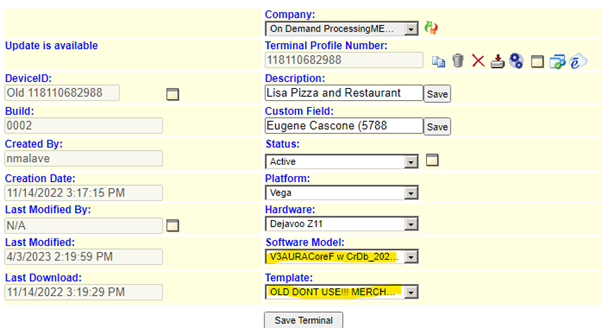
Step 5: After that we should add the parameters in custom.
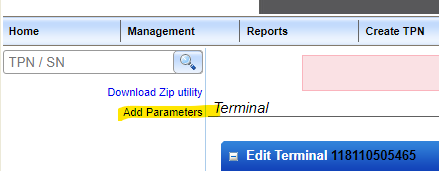
Click → add parameters and select custom.
Once it is opened, search the below mentioned parameters.
1) Custom_fee_print
2) Custom_Fee_Base_Amt_Name
3) Custom_Fee_Total_Amt_Name
Enable these three parameters into this new file.
Step 6:-
- Once we enabled means it showing like,
- Custom_fee_base_amt_name should be default.
- Custom_fee_total_amt_name should be CARD AMT.
- Custom_fee_print should be OFF.
- Dual pricing should be ON.
Step 7:-
- After that we fill in all the details from the saved pdf.
- Once ensure all the parameter settings were the same as the old one before saving the terminal.
- If everything is okay means. We can save the terminal and ask the merchant to do the Download.
Multiple MID
What is the use of having multiple MIDs in the same Dejavoo terminal?
(Ex: TPN - 125900093493)
If that merchant uses the multiple MID in Dejavoo terminal. It will be working with the Same location with a different merchant account, and while doing the transaction, the merchant can change the business-like Retail <->Medical.
How to Create Multiple MID:
Step 1 : Go to DVMMS Portal and get the TPN , and then click on the second Tab 2023030802 - V3AURA_DV_CREDIT_202303… and click on P.V.3.DvCreditApp.02.00.1.2550.DjvL3.WWoo.tar
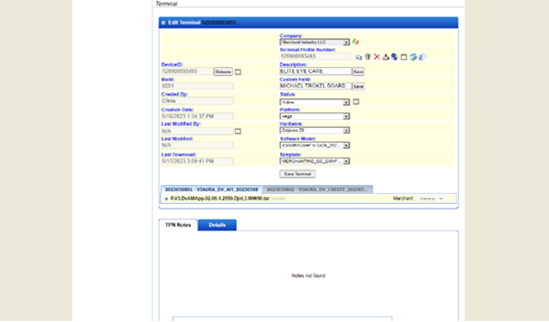
Step 2: Click on the icon next to the “MERCHANT” Drop Down Box
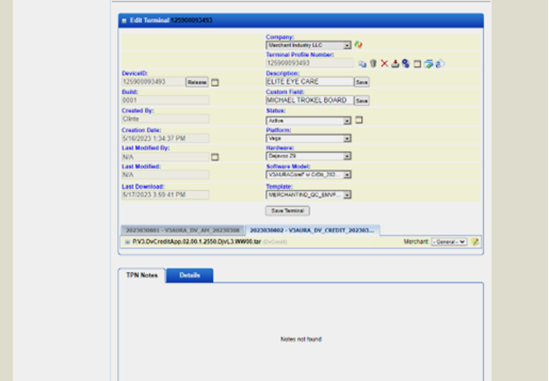
Step 3 : In the “New Merchant” pop-up box input Name for Merchant 1 and click on SAVE, Do this for all merchants using this terminal. Click on CLOSE when after all merchant names have been entered.
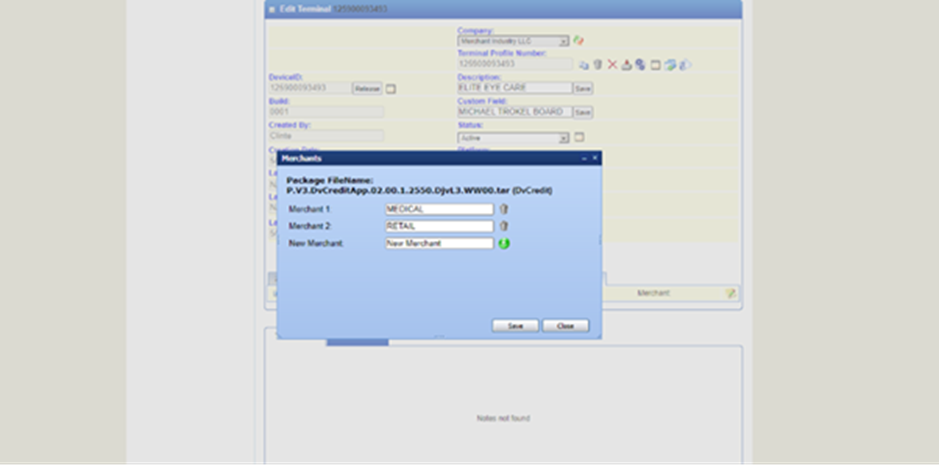
Step 4 : Now that all merchants have been entered click on the Merchant drop-down box to select Merchant #1, expand the parameter sections and enter information specific to merchant #1 i.e.: Header, trailer, MID, etc.
Step 5 : After all parameters have been added for Merchant #1, use the Merchant DROP DOWN BOX to switch to Merchant #2.
Step 6 : Repeat until all parameters have been added for all additional merchants, then click on SAVE TERMINAL.
Step 7 : The system will save the TPN and return to the home page. You will see the last TPN created on the top of the RECENT TERMINALS list on the left side of the page.
Step 8: Once everything is updated properly then ask the merchant to take the download.
Deactivation of Multiple MID in Dejavoo:
Step 1 : Go to DVMMS Portal and get the TPN , and then click on the second Tab 2023030802 - V3AURA_DV_CREDIT_202303… and click on P.V.3.DvCreditApp.02.00.1.2550.DjvL3.WWoo.tar
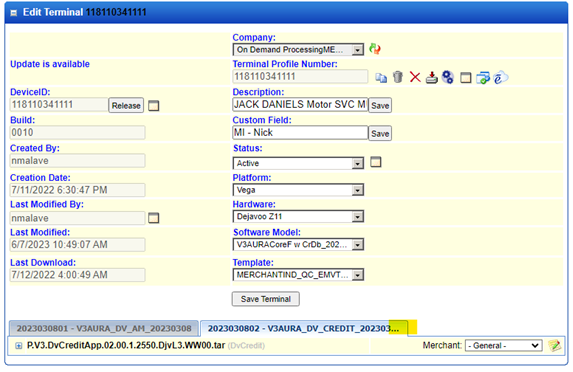
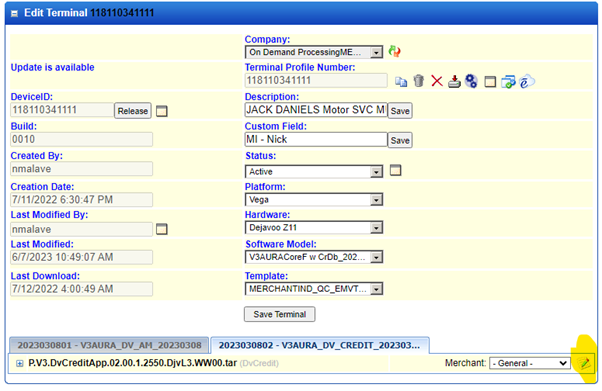
Step 2: Select the “Edit” button next to the General.
Step 3: A new box will open. In that select the delete button for the merchant whose terminal has to be deactivated.
Step 4: Then click on the save button.
Dejavoo QSR setup
- Go to “Add Parameters”
- Add the QSR parameters to the file.
- Make sure “QSR_Enabled” is set to “Yes”

- In the QSR tab, select all QSR options.
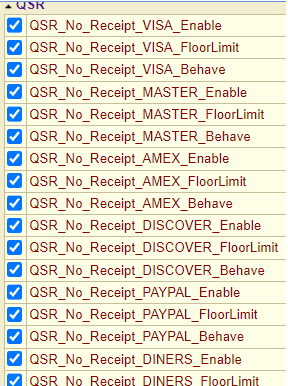
- Select “Close” in the bottom right corner of the popup.
- Depending on whether you want to change the signature or receipt options, select “Yes” next to every QSR option you want to enable, select “No” otherwise.
- The “FloorLimit” is where you set what the merchant wants the cutoff to be when the device will start to either ask for the signature or print a receipt.

There is an invisible decimal point before the last 2 0s. So, the cutoff is set to $100 in the above image.
- On the “Behave” parameters, it is just asking which receipts you want not to print
- NoBoth – Neither a merchant nor a customer copy will print
- NoCustomer – A merchant receipt will print, customer receipt will not print
- NoMerchant – A merchant copy will not print, customer receipt will print
- PromptForCustomer – A merchant copy will not print, A prompt will appear on screen asking whether you want to print the customer copy.
Email address updates on the Dejavoo terminal
If the dejavoo terminal uses a merchant, it needs to update the email address at the terminal level. Please ensure that they are using Denovo or not.
- Email address required in Denovoo only, so we can update the email address.
- Email address is not required in Dejavoo, so we can notate the ticket like " they are using dejavoo only". For your reference watch 07/08/2022 training VDO.
The latest version updates on the Dejavoo terminal
If it's an old version, need to change to a new one. Before updating the new version, we need to create the stage-only file and interchange the V#, Store#, and Terminal#.
After changing these fields, we need to update the new version and take the download.
Regarding Dejavoo,
before, we didn't do it if the PIN pad was enabled (KMS-Version--1). But we need to do it if the KMS version is even 1 or 2.
We only do not update if the original pin pad- Dejavoo Z6 like that
(We do not update the latest version for the PinPad terminal alone. KMS version-1 means, it's just the PinPad option enabled in that Dejavoo terminal)
How to Add the Tax rate on the terminal
Open up the DVMS portal and find the TPN → Go the Credit file section → Custom —> Make the below changes.
As per ISO we need to update the % , If they are not provided we have to take from google based on states.
- Auto _ Tax _ State ( XXX%)
Example:
Tax 8.875% – the rate should be update like that “08875”
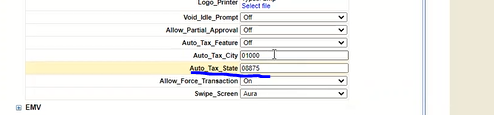
How to add/remove the TIP suggestion on the terminal
Open up the DVMS portal and find the TPN → Go the Credit file section → Common—> Make the below changes
- TIP MODE should be “ OFF ”

Was this article helpful?
That’s Great!
Thank you for your feedback
Sorry! We couldn't be helpful
Thank you for your feedback
Feedback sent
We appreciate your effort and will try to fix the article