Navigate to the Setup Menu
From the main interface, go to Setup to access configuration options.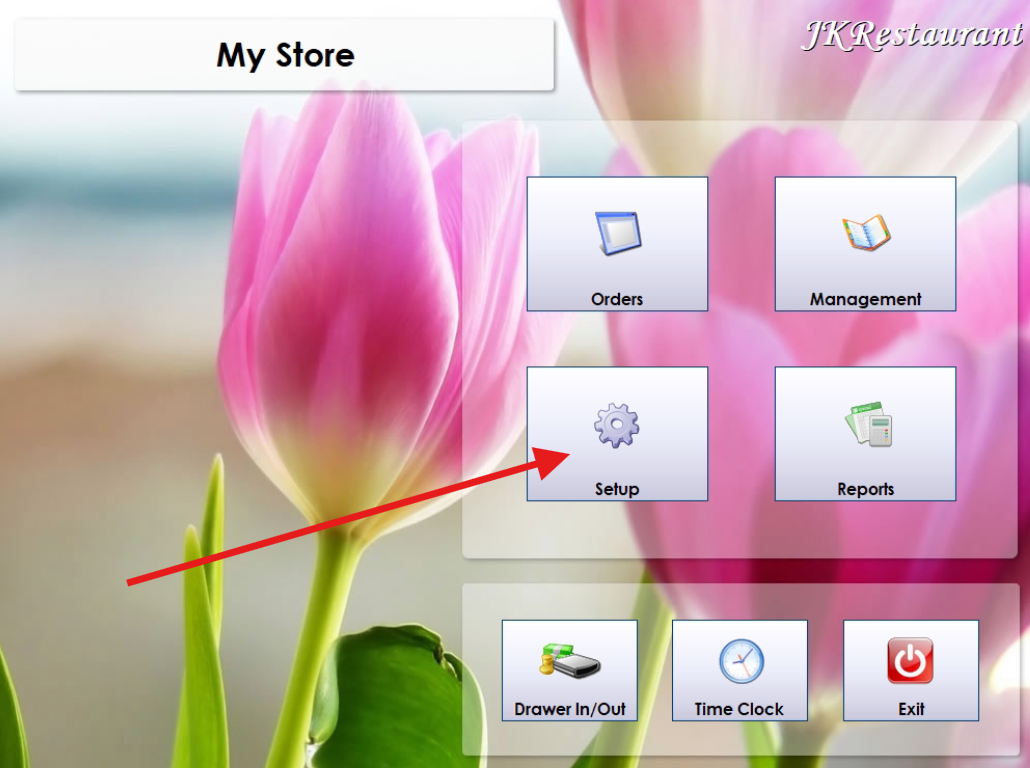
Click on Menu
Within the Setup section, click on Menu to manage items and categories.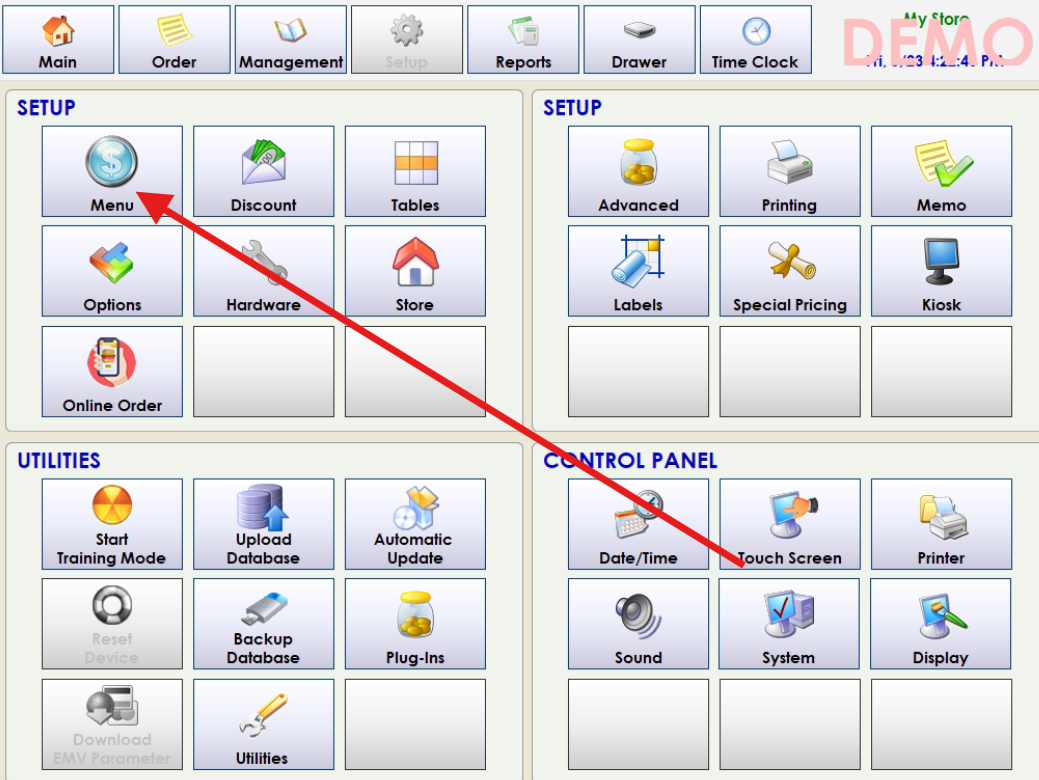
Select the First Item in a Category
Navigate to the desired category and click on the first item you want to configure. It will highlight.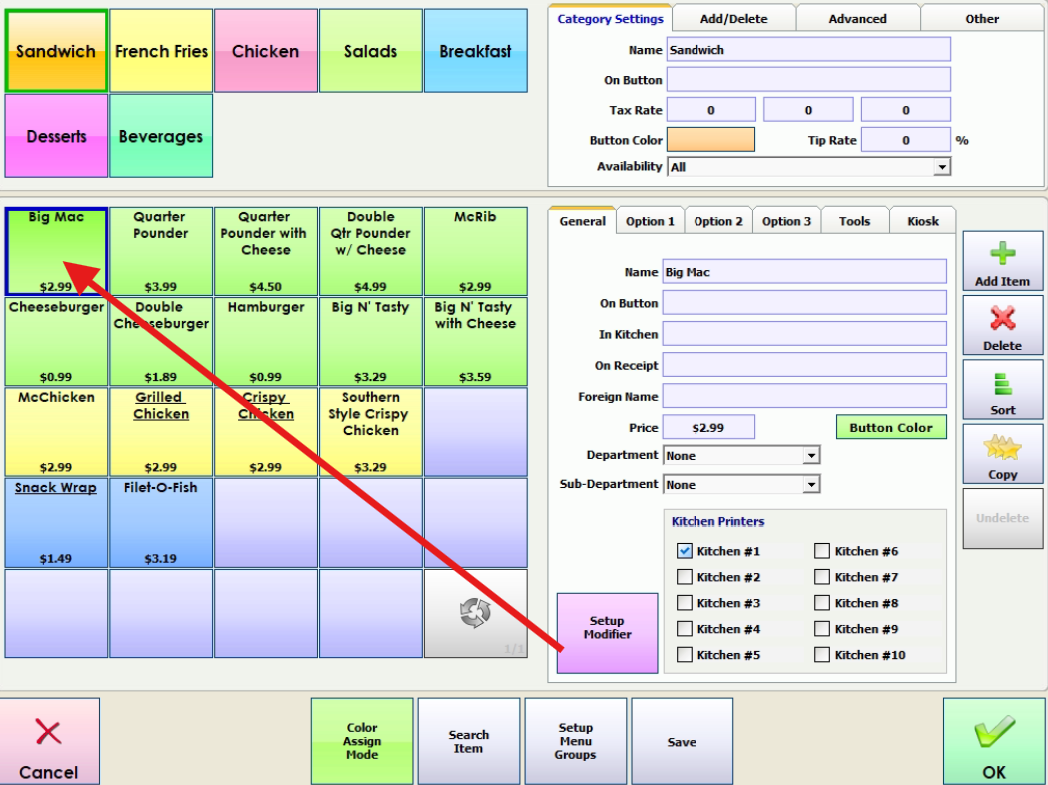
Assign the Kitchen Printer
Choose the appropriate kitchen printer for that item from the available printer list.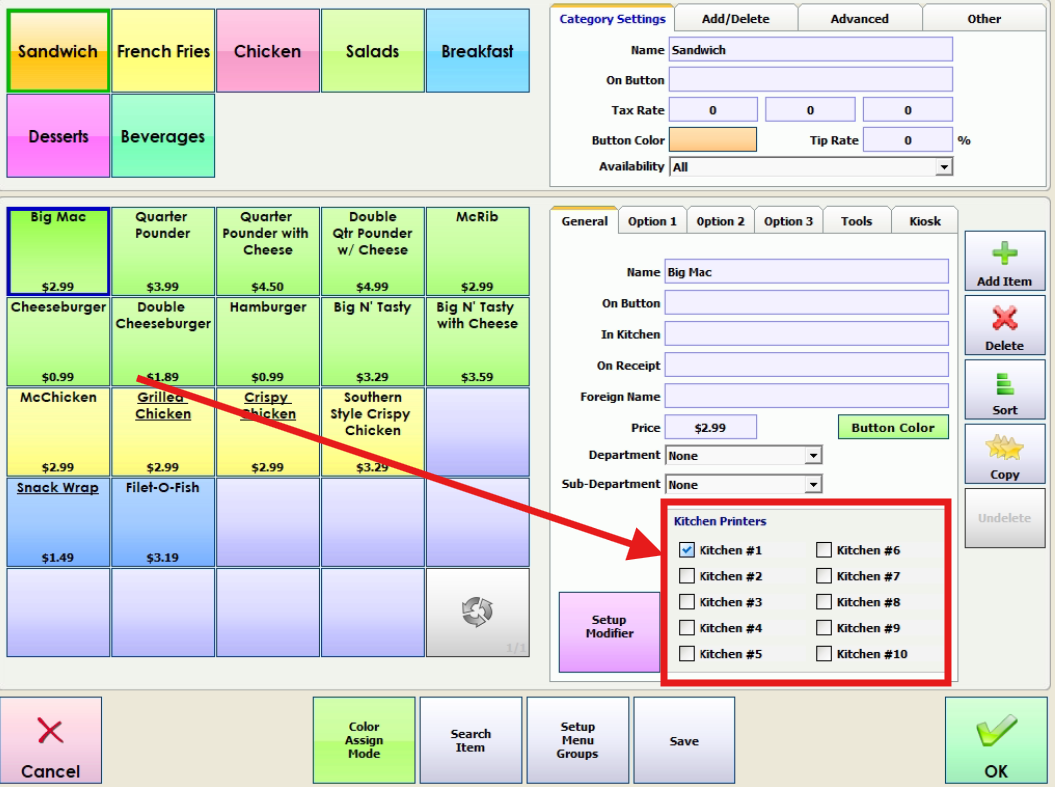
Open the Tools Menu
After assigning the printer, click on Tools to access additional functions.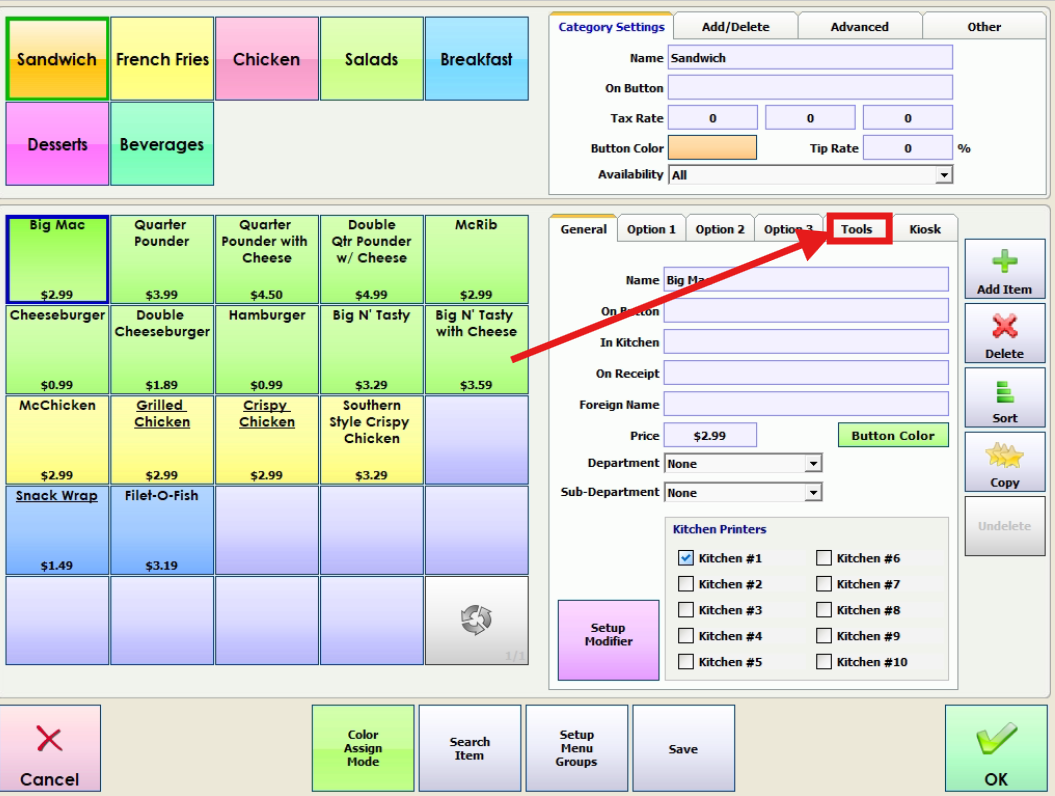
Apply to All Items in the Category
In the Utilities menu, select “Apply Kitchen Printer to All Items” to assign the same printer to every item in the category.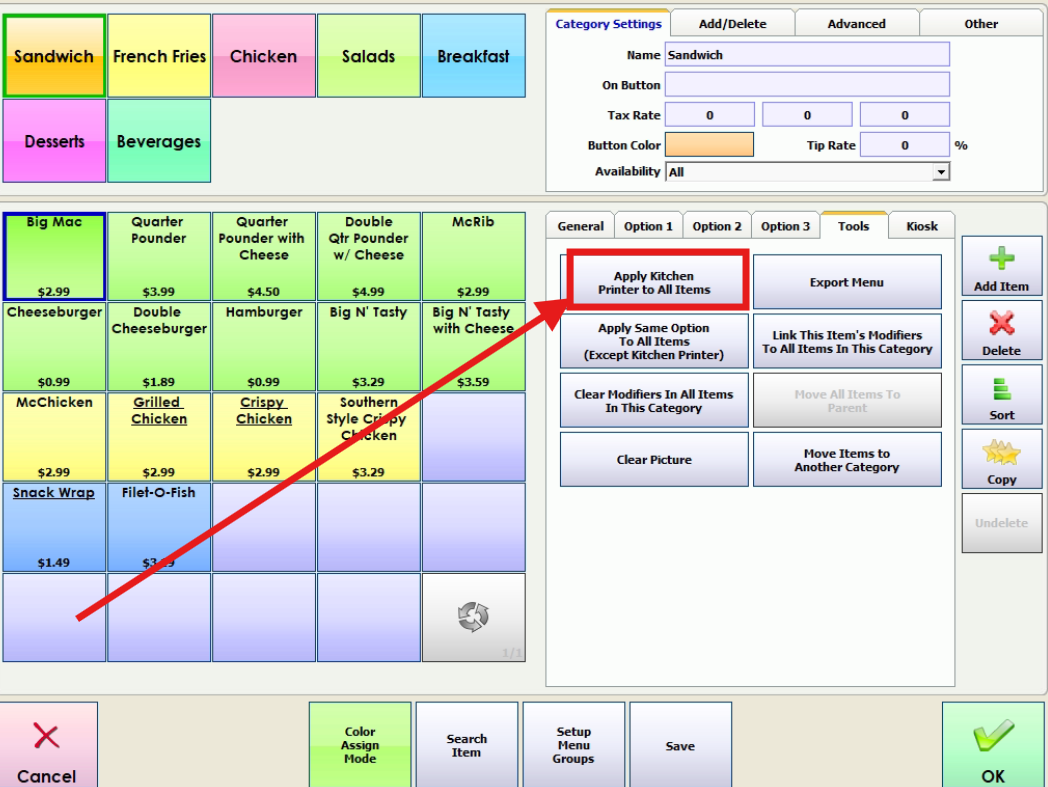
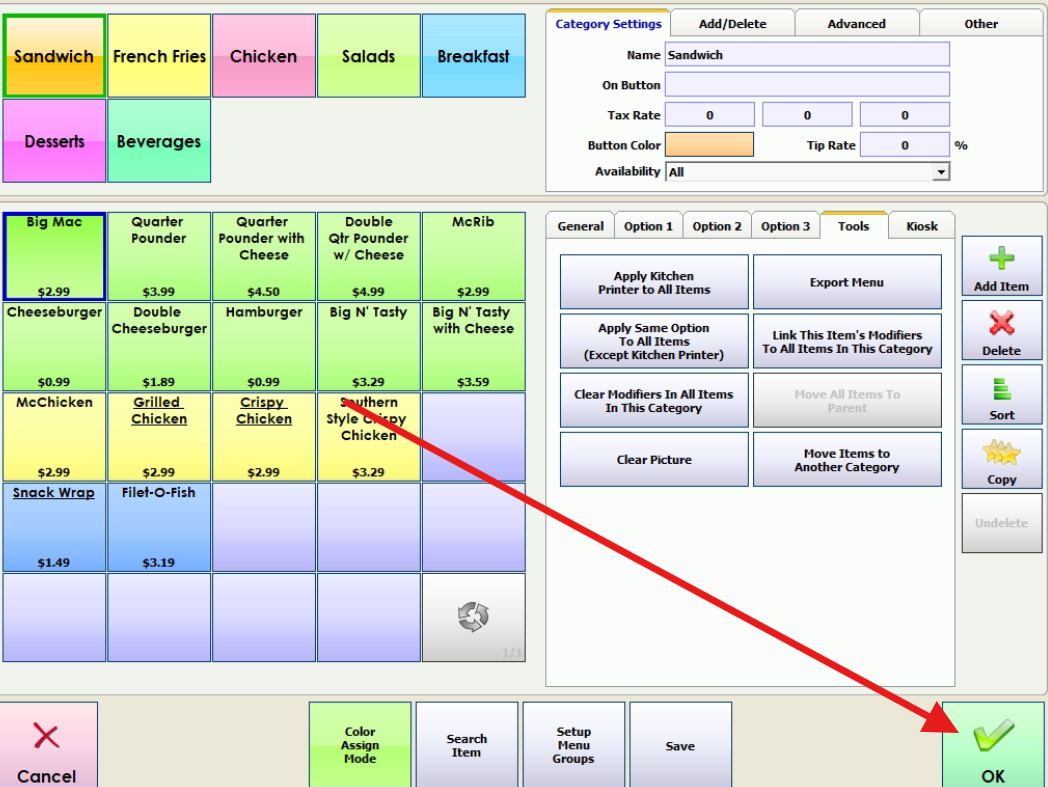
Hit OK and you are good to go!
Was this article helpful?
That’s Great!
Thank you for your feedback
Sorry! We couldn't be helpful
Thank you for your feedback
Feedback sent
We appreciate your effort and will try to fix the article